

Getting Started with DVLA: Run a Vulnerable Laravel Security Lab Locally with Docker
A deliberately vulnerable Laravel application you run locally.
DVLA (Damn Vulnerable Laravel Application) is a full Laravel 12 stack intentionally built with real security misconfigurations. The goal is to give you a working target that matches how production Laravel applications actually fail, not synthetic CTF challenges. Every vulnerability in the app maps to a blog post at jcadima.dev/blog with a detailed walkthrough.
This guide gets the lab running. The exploit posts take it from there.
.env, and the containers run as root.
Run it on your local machine or an isolated VM. Never expose it on a
public network or deploy it anywhere it can be reached from the internet.
What You Need
Docker
Docker Desktop on Mac/Windows, or Docker Engine + Compose plugin on Linux. Any recent version works.
Git
For cloning the repository. Any version.
Node.js 18+
For building frontend assets. Runs on your host machine, not inside Docker. Comes with npm.
4 GB RAM
Five containers run simultaneously: PHP, Nginx, MySQL, Redis, and a Horizon queue worker.
You do not need PHP, Composer, or Laravel installed on your host. Everything PHP-related runs inside Docker. The only exception is npm, which builds the Vite frontend bundle from the host.
Make sure ports 8084 and 3306 are free on your machine before starting. If something else is already using them, see the troubleshooting section at the end.
What Gets Spun Up
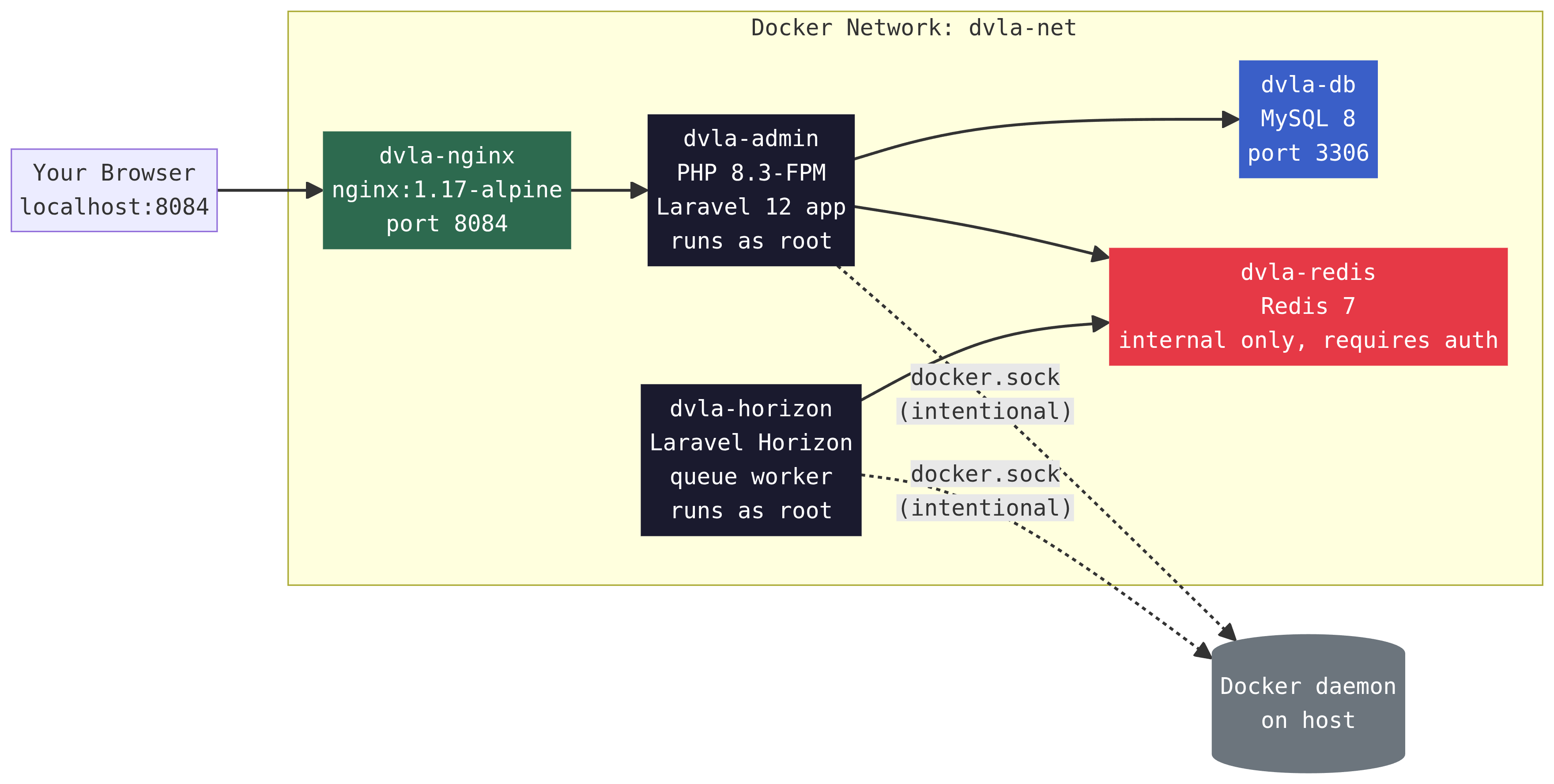
The dashed lines to the Docker daemon socket are intentional vulnerabilities, not accidents. They are there so you can follow along with the container escape exercises in the blog series.
Installation
git clone https://github.com/jcadima/dvla
cd dvla
The repository contains the full Laravel application, Docker configuration, and the blog post Html files for the series.
Make sure to copy .env.example to your .env file before building and starting the containers.
docker compose up -d --build
The --build flag tells Docker to build the PHP image from
the Dockerfile before starting. On first run this takes two to three
minutes as it installs system packages and PHP extensions. Subsequent
starts are instant since the image is cached.
The -d flag runs everything in the background. Your terminal
is free immediately while Docker does its work.
dvla-db container runs a healthcheck before the PHP
containers connect to it. On first run MySQL initializes its data
directory, which can take 30-60 seconds. The dvla-admin
container automatically waits for the healthcheck to pass before starting.
If you see it restarting, give it a minute.
docker ps --format "table {{.Names}}\t{{.Status}}\t{{.Ports}}"You should see all five containers with a status of Up:
NAMES               STATUS                   PORTS
dvla-nginx          Up 2 minutes             0.0.0.0:8084->80/tcp
dvla-admin          Up 2 minutes
dvla-horizon        Up 2 minutes
dvla-db             Up 2 minutes (healthy)   0.0.0.0:3306->3306/tcp
dvla-redis          Up 2 minutes
dvla-db should show (healthy). If any
container shows Restarting, wait 30 seconds and run
docker ps again.
docker exec -it dvla-admin bashroot@abc123:/var/www#
You are now inside dvla-admin as root. The working directory
is /var/www, which is the full Laravel project mounted from
your host. Changes you make here are reflected on your host filesystem
and vice versa.
composer install --no-interaction
Composer is bundled in the Docker image. If vendor/ already
exists from a previous build, this command is a quick no-op. Run it
regardless to be sure.
php artisan migrate:fresh --seedThis creates all the database tables and populates them with demo data: an admin user, sample blog posts, pages, a contact entry, and the other records the application needs to function. You should see output like:
  INFO  Preparing database.

  Dropping all tables ... DONE
  Running migrations ... DONE

  INFO  Seeding database.

   RoleSeeder ........................................................ RUNNING
   HomePageSeeder ................................................... RUNNING
   PageSeeder ....................................................... RUNNING
   PostSeeder ....................................................... RUNNING
   UserSeeder ....................................................... RUNNING
   SettingSeeder .................................................... RUNNING
SocialSeeder ..................................................... RUNNINGdocker-compose.yml. You can run
php artisan key:generate and it will update your
.env file, but the docker-compose environment override takes
precedence for the running containers. For following along with the
blog exercises that involve cookie forgery, use the preconfigured key rather than generating a new one.
php artisan config:clear
php artisan cache:clear
php artisan view:clear
Then exit the container:
exitYou are back on your host machine. The application is running but the frontend assets have not been built yet.
Node.js is not included in the Docker image. Run these from your host machine in the project directory:
npm install
npm run build
npm run build compiles and bundles the CSS and JavaScript
(Bootstrap 5, custom styles, Alpine.js) using Vite. The output goes into
public/build/, which is served by Nginx.
npm run build does a one-time production build and finishes.
Use this if you just want to run the lab. npm run dev starts
the Vite development server with hot module reload, which keeps a process
running in your terminal and updates the browser as you edit files. Use
that only if you are modifying the frontend code. For the security
exercises, npm run build is all you need.
Open your browser and go to:
http://localhost:8084
You should see the DVLA homepage with the vulnerability module grid
and the companion blog series list. If you see a blank page or a Vite
manifest error, make sure npm run build completed successfully.
Default Credentials
The database seeder creates these accounts. Use them to log in at
http://localhost:8084/login:
| Role | Password | Notes | |
|---|---|---|---|
| Administrator | admin@artisanbreach.com | artisanpass123 | Full admin panel access |
| Contributor | contributor@artisanbreach.com | see note | Has a legacy_password magic hash - used in Post 3 (type juggling) |
| Regular users | random (5 accounts) | password | Generated by Faker for IDOR exercises |
You can change these default values at /database/seeders/UserSeeder.php
You can always check the current admin email from inside the container:
docker exec dvla-admin php artisan tinker --execute "echo App\Models\User::whereHas('role', fn(\$q) => \$q->where('name', 'Administrator'))->first()->email;"What You Get
The running lab is a complete Laravel 12 application with a frontend, an
admin panel, a blog, a contact form, and user management. It is not a toy
app with fake endpoints. Every vulnerability lives in real application code:
the Eloquent model is missing $fillable, the WYSIWYG editor has
its filter turned off, and docker.sock is genuinely mounted in
the app containers.
The lab ships with fourteen vulnerability modules, from the opening mass assignment bug through to the full kill chain:
| Post | Vulnerability | Severity |
|---|---|---|
| 1 | Mass assignment on the User model (instant admin) | High |
| 2 | Nginx misconfiguration: .env leak → APP_KEY deserialization RCE | Critical |
| 3 | PHP type juggling in authentication (auth bypass) | High |
| 4 | SQL injection via raw query builder methods | Critical |
| 5 | IDOR on contributor routes | High |
| 6 | Livewire file upload bypass (MIME type trust) | High |
| 7 | Stored XSS via Blade bypass / disabled Summernote filter | High |
| 8 | Open redirect | Medium |
| 9 | SSRF (server-side request forgery) | High |
| 10 | Redis with no auth: Horizon queue job injection | Critical |
| 11 | docker.sock mounted in containers: container escape to host | Critical |
| 12 | SSTI (server-side template injection) | Critical |
| 13 | Race condition | High |
| 14 | Full kill chain: all vulnerabilities chained together | Critical |
The blog series are released weekly at jcadima.dev/blog. Each post covers a single vulnerability with a full source code walkthrough, step-by-step exploit, and remediation. The site is the source of truth for the series, so even if your local lab has all eight modules, check the site for the published writeups and additions/updates for new and existing exploits.
Your local install has the full application running right now. You can poke around each module without waiting for the blog posts. When a post drops, you already have the live target to follow along with.
Resetting the Lab Between Exercises
Some exercises modify the database: creating admin accounts, injecting XSS payloads, changing settings. To get back to a clean state:
# Stop containers and remove the MySQL volume
docker compose down -v

# Start fresh (no rebuild needed - image is cached)
docker compose up -d

# Re-run migrations and seed
docker exec dvla-admin php artisan migrate:fresh --seed
The -v flag on down removes the named volume
(mysql-data), which wipes the database completely. Everything
else (container images, application code, node_modules) is left intact.
The next up starts with a blank database that gets repopulated
by the seeder.
- Application
- http://localhost:8084
- Admin login
- admin@artisanbreach.com / artisanpass123
- MySQL
- localhost:3306 (user: dvla, password: secret123, db: dvla)
- Redis
- internal only (dvla-redis:6379 on dvla-net) no password
- localhost:6379 (no password)
- App container
docker exec -it dvla-admin bash- Start lab
docker compose up -d- Stop lab
docker compose down- Full reset
docker compose down -v && docker compose up -d && docker exec dvla-admin php artisan migrate:fresh --seed- Blog series
- https://jcadima.dev/blog
- Source code
- https://github.com/jcadima/dvla
Troubleshooting
docker compose up -d again. If the problem persists, check the MySQL logs: docker logs dvla-db.docker-compose.yml. For example, change "0.0.0.0:8084:80" to "0.0.0.0:8099:80" and access the app at localhost:8099.npm run build on your host. If you previously ran npm run dev and stopped it, the manifest file from the dev server is gone. A production build writes a persistent manifest file.sudo or change ownership: sudo chown -R $USER:$USER .npm install from the project root on your host (not from inside the Docker container). Node.js 18 or higher is required: check with node --version.docker-compose (v1) installed instead of the Compose plugin (v2). Try docker-compose up -d --build with a hyphen instead of a space.